

Opening Joe
You can invoke Joe’s assistant panel from multiple places:- Sidebar Icon: Click the Robot icon in the sidebar to open the primary Chat panel.
- Keyboard Shortcut: Press
Cmd+Shift+A/Ctrl+Shift+Ato open, minimize, or restore the Joe panel. (Ctrl+Jcopies the selected node’s JSON — it does not open Joe.) - Node Summary brainstorm: Click “Brainstorm with Joe” inside the Node Summary modal.
- Gallery Slot Brainstorm: Select a gallery card and click the Robot button to open chat targeted to that specific slot.
The Chat Interface & Session Pills
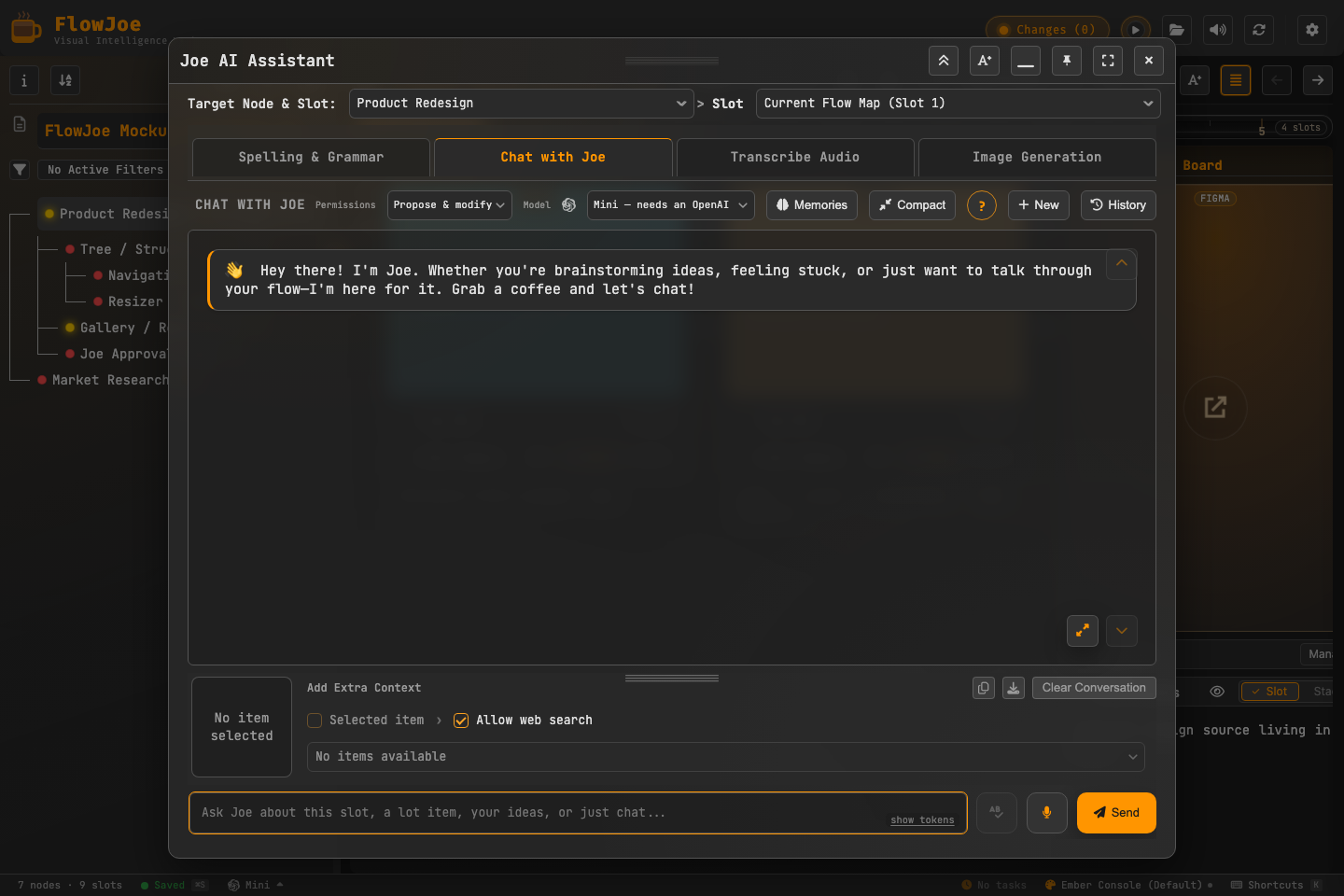 When Joe is active, his interface is clean and lightweight:
- Session Pills: FlowJoe lets you park multiple chat sessions as tabs or “pills” at the top of the AI panel. You can keep a spreadsheet analysis chat active on one pill while drafting summaries in another.
- Streaming replies: Joe’s answers appear as they’re written, not all at once at the end — including replies that come after he reads or checks something (a multi-step answer streams in each step). On the Claude-family CLI brains (Fable 5.1, Opus 5, Sonnet 5, Haiku — see Bring Your Own Brain), the terminal agent’s own reply streams too; Gemini, Grok, and Antigravity currently show their full reply at once instead.
- Stop really stops. Clicking Stop on a CLI brain (Claude, Gemini, Grok, Antigravity) ends that terminal process, not just the display — it can’t keep working in the background or apply a change after you’ve stopped it.
- Voice Dictation: Click the microphone icon or hold your voice shortcut key to dictate prompts. Joe supports a robust voice command set (e.g. saying “comma”, “new line”, or “delete last word” inserts the correct characters).
- Read-Aloud Voice: In Settings, you can configure Joe’s voice. When enabled, Joe streams his replies out loud via OpenAI’s text-to-speech engine.
- Honest waits and clear errors. If a request needs to retry (a brief provider hiccup), Joe’s status shows Retrying… instead of looking stuck on “thinking”. If something goes wrong — you’re out of quota, your key was rejected, or the provider is having trouble — the chat shows a plain-language reason instead of a raw technical error, with the original provider text available underneath if you need it for support. If a chat message genuinely fails to save (for example, storage is full), you see a one-time warning toast instead of silently losing it.
- Regenerate stays available. After starting a new conversation and reopening FlowJoe, the Regenerate option on Joe’s last reply keeps working, instead of silently disappearing.
Context awareness
Joe is given a bundle with each send, not only the sentence you typed:- Where you are — the selected node, its summary, and the active gallery slot or stack.
- The flow map — a name-and-id outline of the tree. By default this is limited to the node you are on, everything under it, and the path up to the root (Limit map to my location, on by default). You can send the whole tree, or omit the map entirely, with the checkboxes above the message box.
- The text of the current slot, plus any documents, spreadsheets, or files you attach.
[!TIP] Pill Minimization: You can minimize the Joe panel into a floating tray button. Your session histories and generated image cards are preserved, allowing you to quickly pop Joe open, review a draft, and close him again.