

Permission Levels
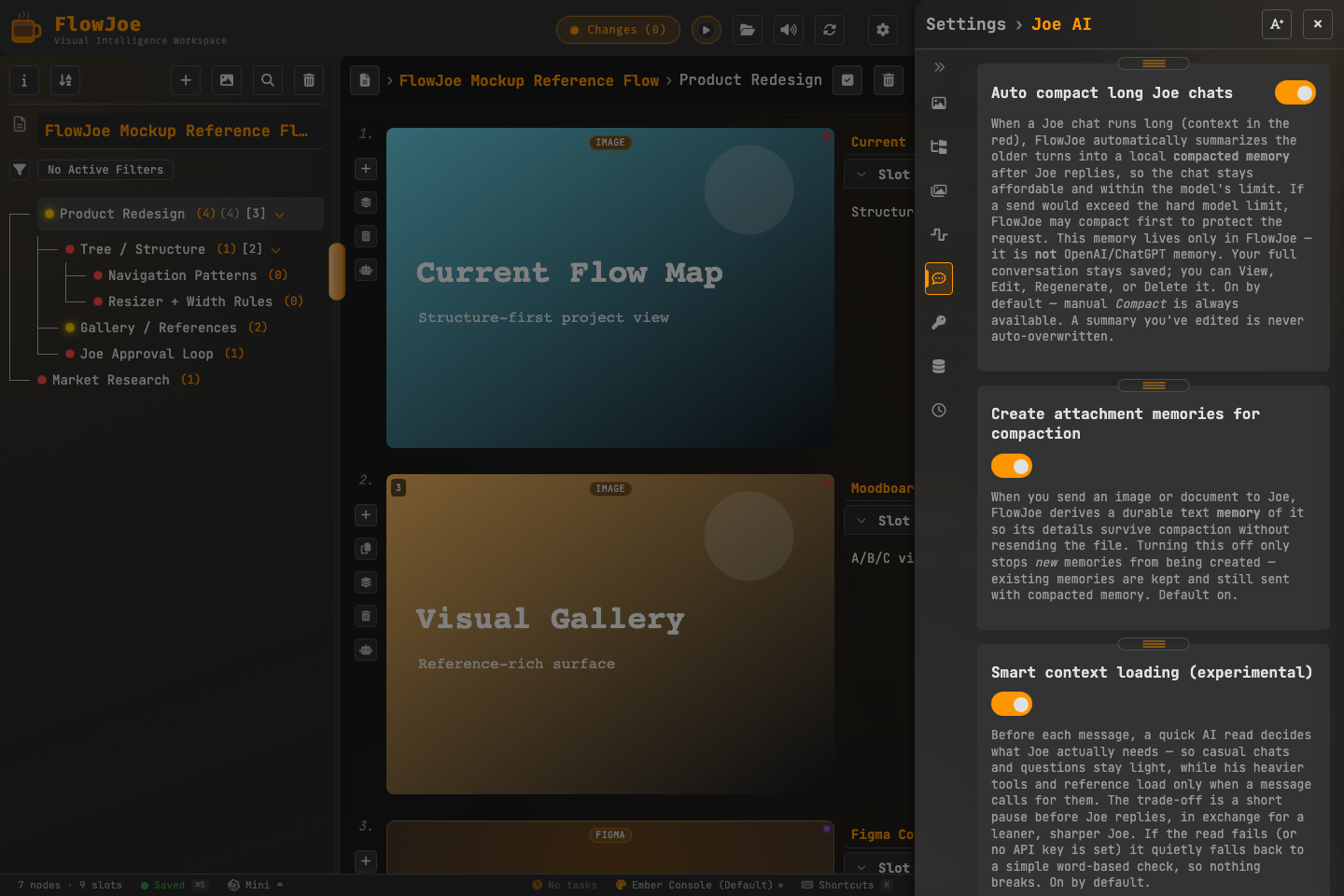 In Settings, or at the top of the Joe chat panel, you can set Joe’s global permission level:
This level applies whichever brain is driving Joe — OpenAI or a CLI brain — and is enforced the same way regardless of what the brain itself claims about its own capabilities.
Visual & Content Access Gates
You can block Joe from seeing specific parts of your work:- Private Nodes: Joe cannot read the notes, summaries, or gallery slots of Locked Private nodes unless you explicitly unlock them during your session.
- Omit entire flow map on the chat panel is a cost/focus control, not a privacy seal. It leaves the tree outline off the automatic send; Private nodes and Hidden from Joe are what actually seal content. See Token usage with Joe.
- Context Indicator: When a chat is active, the Context Indicator displays exactly what files and nodes are being sent with your prompt. You can click to remove specific attachments from the payload before hitting send.
- No Remote Training: Your local keys remain on your machine. We only communicate with the AI endpoints you authorize, and your data is not saved for public training datasets.