

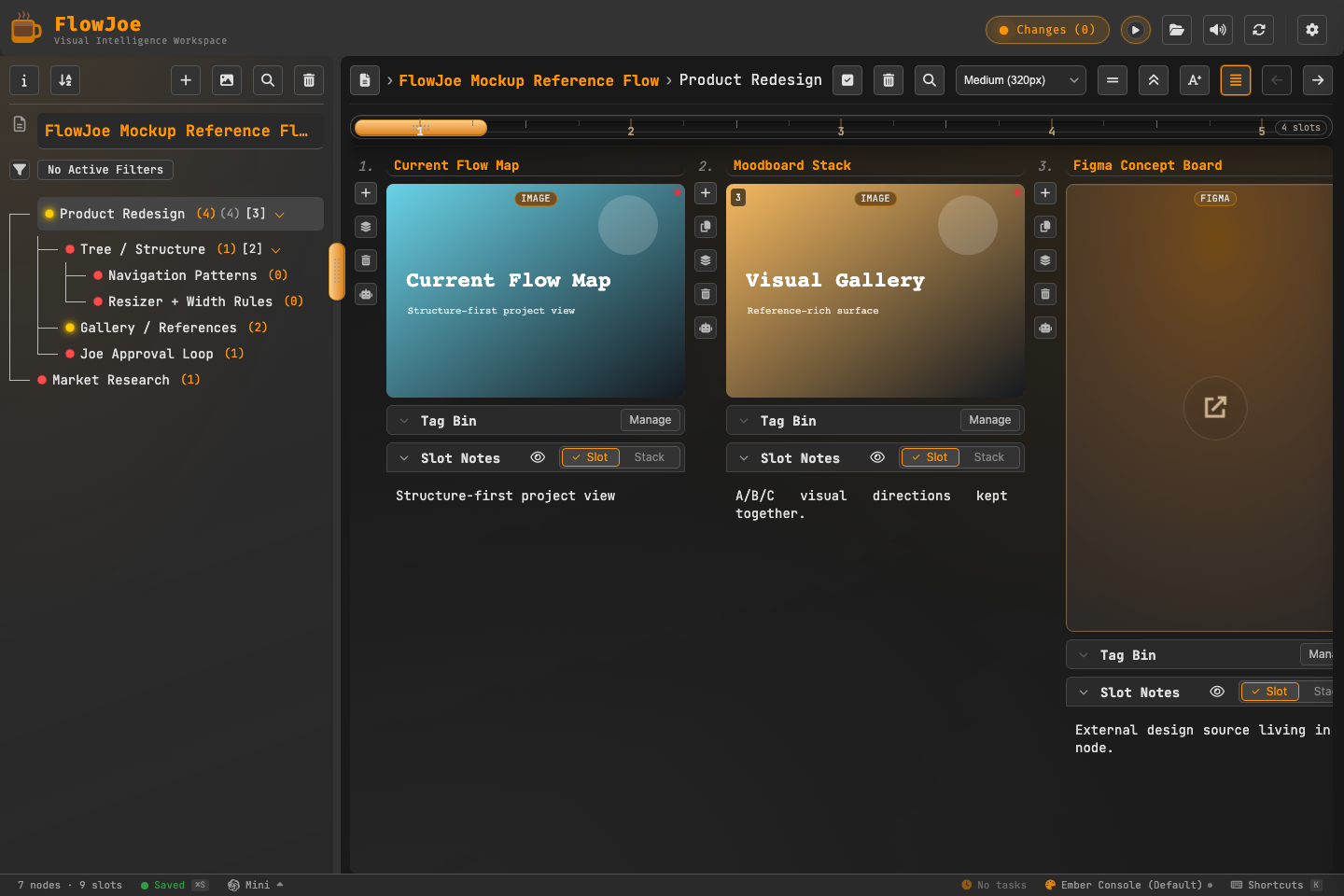
 The Global Audio Player is always accessible in the application header, persisting across all workspaces.
🎧 Persistent Cross-Node Playback
Most tools force you to stay on a specific page to listen to attached audio, or open cluttering external media player windows. In FlowJoe, audio lives on the header shell:- Zero Interruption: Start a track in the tree’s Research branch, and keep listening as you jump into Milestones to update tasks or brainstorm with Joe.
- Exclusivity Sync: Starting playback on the header player automatically pauses any other video or audio cards playing on your active gallery board, keeping your workspace aurally clean.
📂 Drag-to-Curate Playlists
Curation is instantaneous. You don’t need to manually configure files to build a queue:- Drag-and-Drop: Drag individual audio slots or entire media stacks from your gallery and drop them onto the header player to build a temporary queue.
- Auto-Filter Queues: By default, the player compiles a queue from your currently selected tree node. You can add a Tag Filter (e.g. #mix-take-3 or #voicemail) to automatically isolate target audio files.
- Format-Safe: Dropping stacks containing mixed media (e.g. images + audio files) is fully supported; FlowJoe filters out non-audio files automatically.
💾 The Playlist Modal
Clicking the queue button on the header player opens the Playlist Modal—your command center for track management:- Current Queue Tab: Manage your active playback queue. Reorder tracks using drag-and-drop, delete items, search through titles/nodes/tags, or click the link badge to jump directly to the origin tree node where that audio file resides.
- Saved Playlists Tab: Turn your active queue into a named, permanent playlist. You can reload, update, rename, or reorder playlists at any time.
- Keyboard Control: Capture full keyboard navigation inside the playlist modal:
Space/Enterto play the selected track.Delete/Backspaceto remove tracks from the queue.Cmd/Ctrl+Ato select all tracks.Escapeto dismiss the panel.
🎨 Automatic ID3 & Custom Cover Art
FlowJoe parses incoming audio files (MP3, M4A, AAC, WAV, FLAC, OGG) on drag-import and builds rich visual assets:- ID3 Metadata Extraction: Instantly extracts track title, artist name, and album metadata to format player titles and list rows.
- Embedded Album Art: Automatically extracts embedded cover art and caches it in local storage, rendering it as the preview thumbnail of the gallery slot.
- Artwork Flyout: Open the cover art panel to upload custom files or generate placeholders, keeping your references visually striking.
- Joe: You can ask Joe to set, replace, or remove the album art on an audio item, using a picture already saved in FlowJoe. On a linked audio file the cover is remembered on this machine and does not change the file itself.
- Joe: You can ask Joe to play the current queue, choose a saved playlist by name, change playback mode, play one gallery audio file once, or play audio carrying one of your tags. These controls take effect right away; they do not use an approval card. Hiding the player stops playback.
Ask Joe to control playback
- “Play some music.” Joe starts the current queue. If it is empty, he starts the first non-empty saved playlist he can access, in the order shown in the player.
- “Shuffle the current queue.” Joe turns on shuffle for that queue.
- “Loop this track.” Joe turns on repeat-one. “Play the playlist in order” uses sequential mode, which repeats the queue when it reaches the end.
- “Play the audio in the Opening node once.” If the node has several audio files, name the slot or stack item so Joe can choose the exact file; playback stops when that file ends.
- “Play something tagged calm.” Joe can match a mood or vibe only when your visible audio slots have a matching user tag. Add tags such as calm, focus, or upbeat to the audio you want grouped; Joe does not guess a mood from a filename.
- “Save this queue as Focus Mix.” Joe saves the current queue under that name. To save tagged audio without starting playback or changing the current queue, ask “Make a playlist called Quiet Work from audio tagged calm.” He asks for a name if you did not give one and will not overwrite an existing playlist.